Changelog

Follow new updates and improvements to ekkie.ai.

August 10th, 2026

This release is mostly about memory and context. Ekkie now builds up its own knowledge of every company you manage, reads the history already on a ticket before it acts, and gains two new things it can look at for you.


🧠 Ekkie remembers what it learns

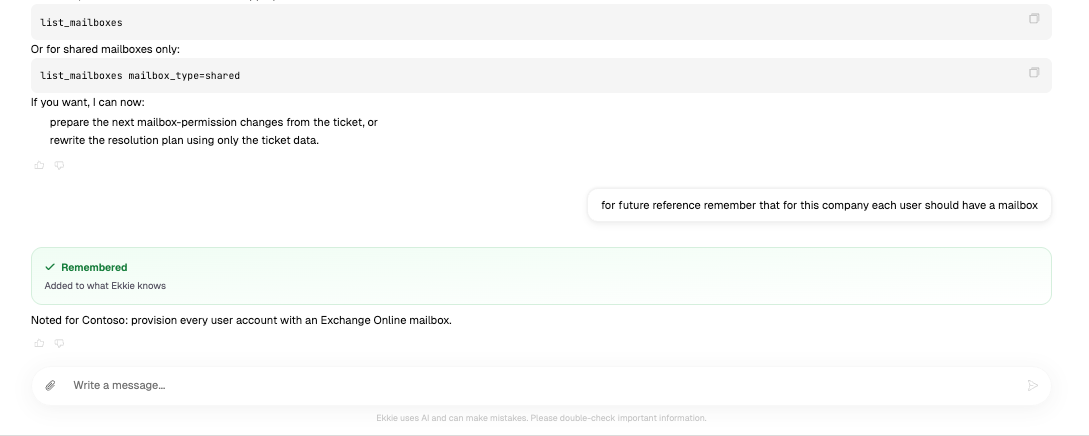
Ekkie now builds its own knowledge of each company as it works. Whenever it discovers something worth keeping, a naming convention, an environment quirk, the way your team likes a particular task handled, it writes it down and carries it into every future ticket for that company. No more re-explaining the same thing on every ticket.


✋ You approve every learning before it’s saved

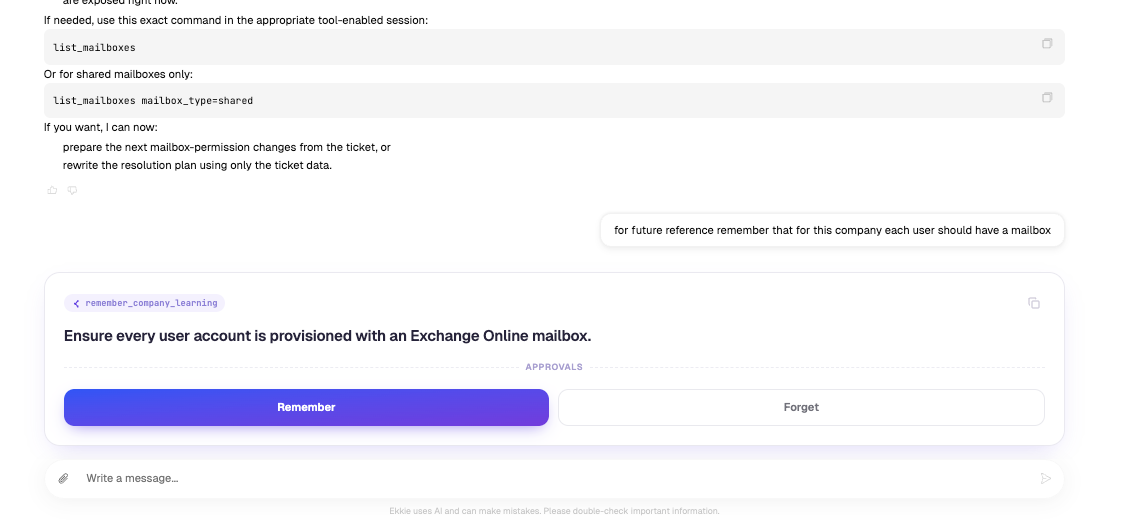
Ekkie asks before it remembers anything. An approval card shows exactly what it’s about to write down, so you can edit the wording or reject it outright. Saving learnings is a normal tool too, so you can enable or disable it per team member and per company from EkkieChat Settings, exactly like every other tool.
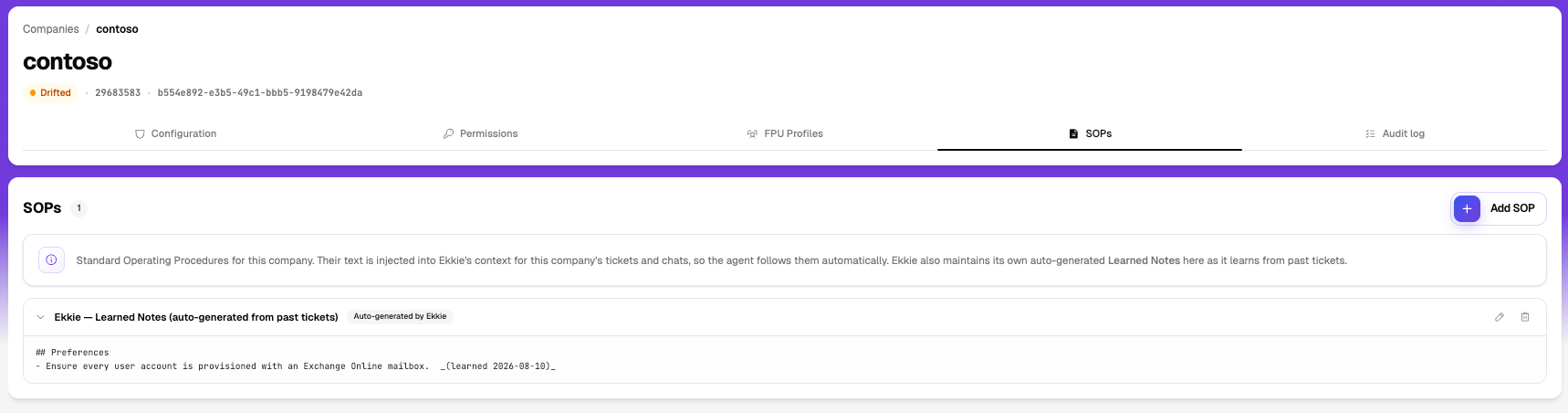
📌 Learned Notes, pinned in the SOPs tab

Everything Ekkie has taught itself sits pinned and badged at the top of that company’s SOPs tab. Read it, correct it, or delete anything you’d rather it forgot, it’s your company’s knowledge and it stays yours to edit.

📝 Ekkie always has access to the ticket’s notes

Before Ekkie works a ticket, it now reads the notes already on it: what the engineer tried, what the customer replied, where the last shift left off. It picks up from there instead of suggesting steps that were already tried and ruled out.


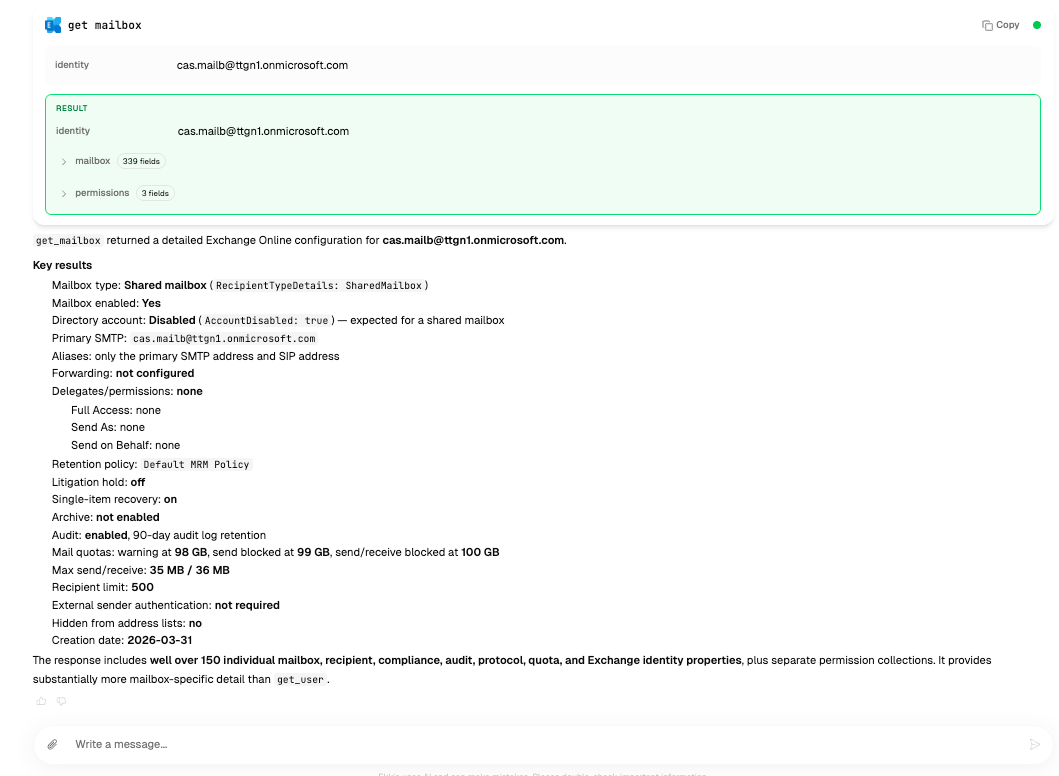
📬 A full mailbox picture in one step

Ekkie can now pull a complete view of any mailbox, all of its settings plus everyone who has access to it: Full Access, Send As, and Send on Behalf, together in a single answer. Handy for delegation questions and access reviews.

☁️ Azure resources

Ekkie can now work with Azure directly, inspecting your subscriptions and the resources inside them. Any change still goes through approval, so nothing is modified without you saying yes.


As always, we’d love to hear what you think your feedback shapes what we build next.

July 13th, 2026

You can now decide, per team member, exactly which tools can Ekkie use on their behalf and per Company which tools are available for Ekkie to execute.


New EkkieChat Settings — enterprise-app & tool access management

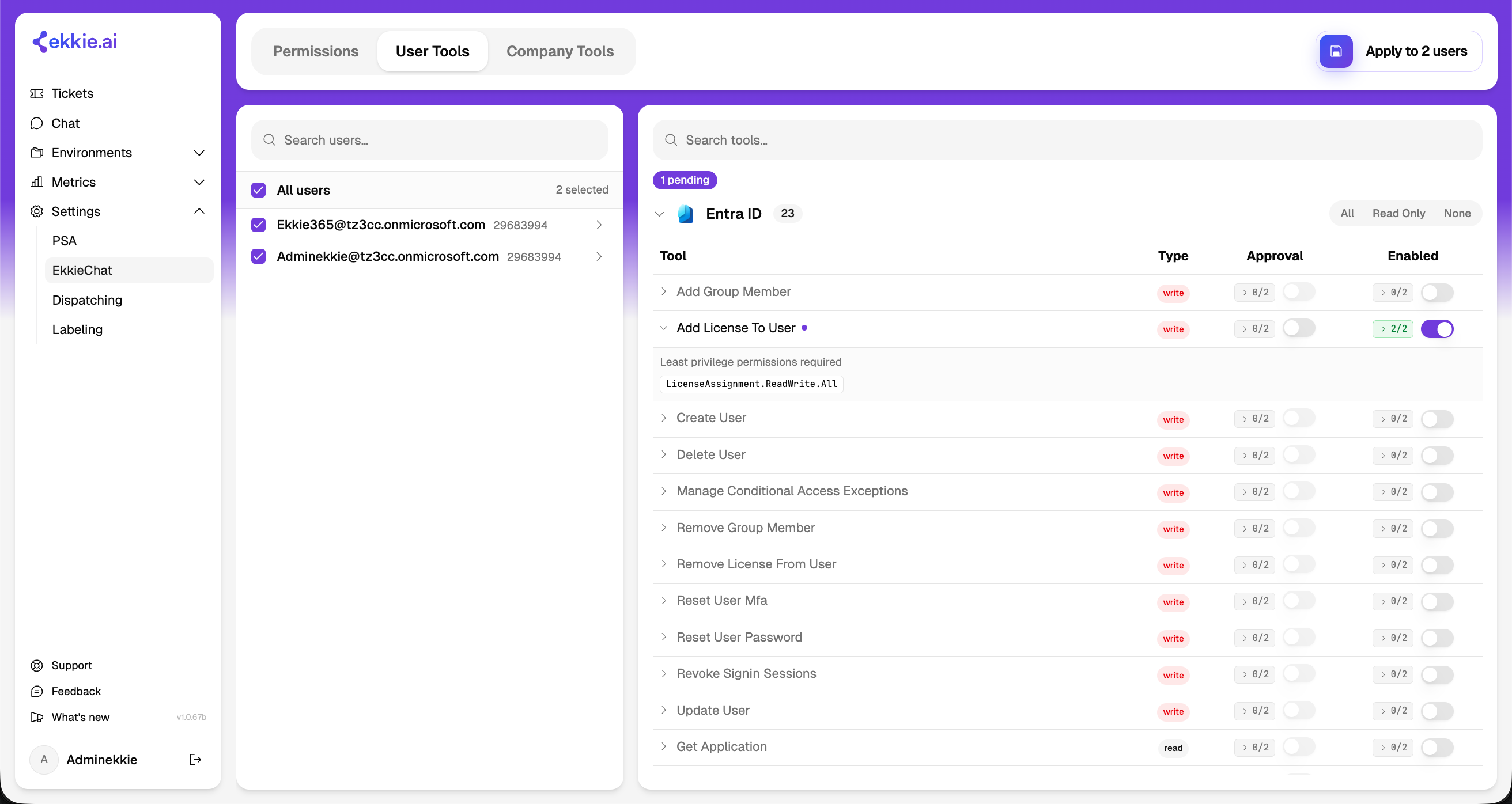
The EkkieChat settings page is one place to grant access across all your managed companies at once. A mode switch at the top gives three views, each with the same layout — pick who you are changing on the left, choose what to grant on the right, and Apply it to everything selected in one action:

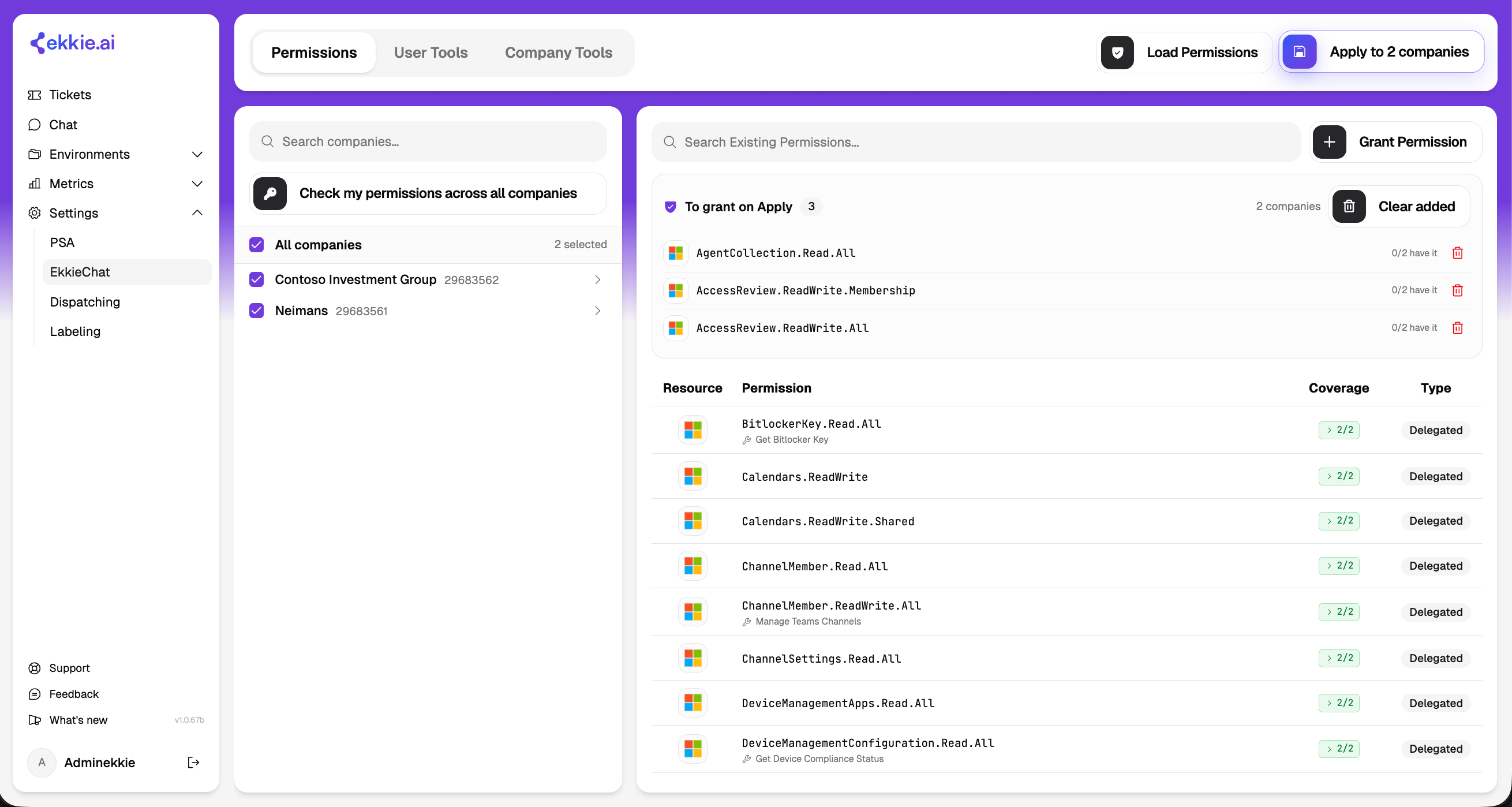
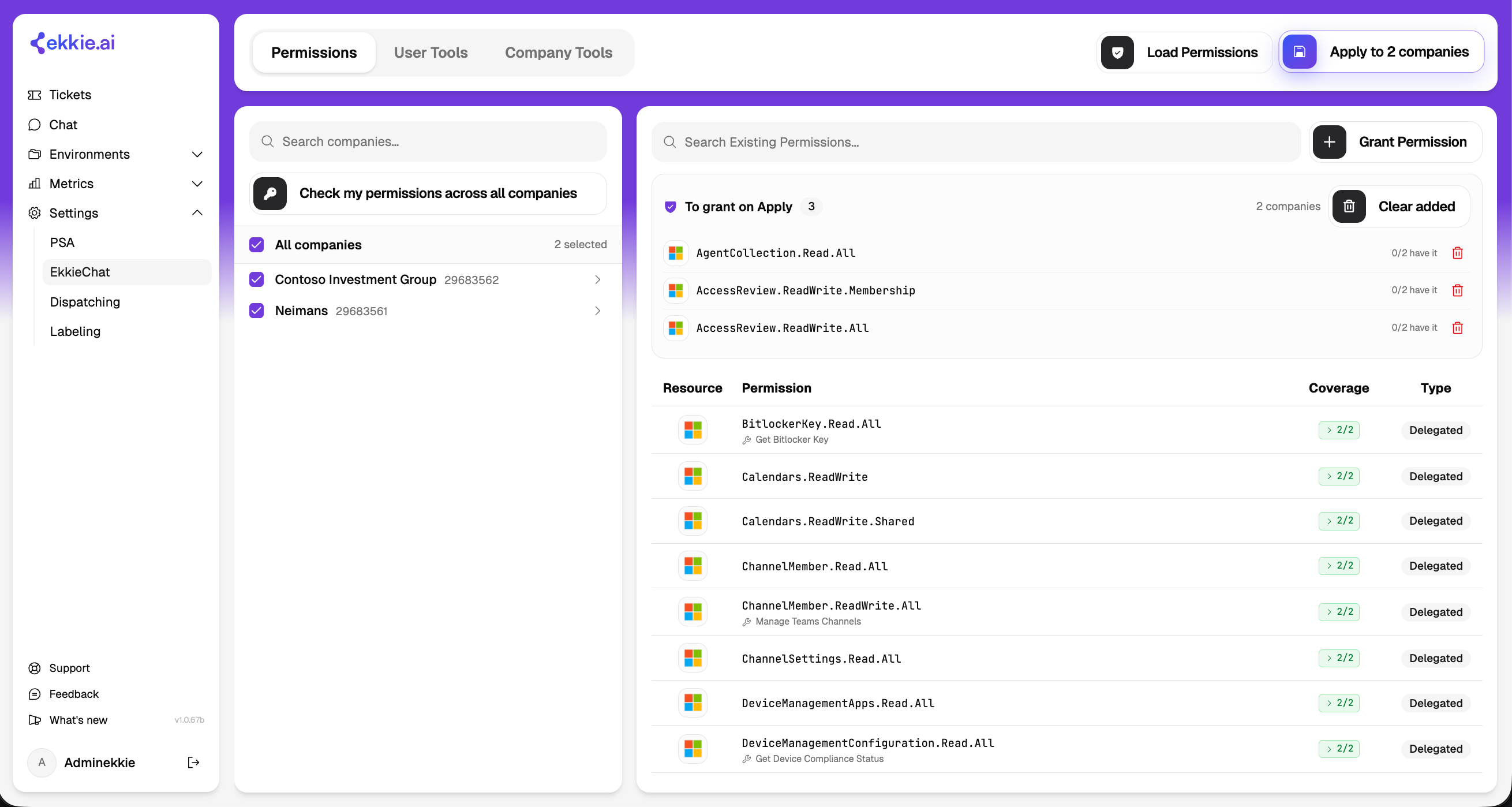
  • Permissions — grant the Microsoft permissions Ekkie's Enterprise Application needs, across all selected companies companies. Select the companies you want to overview, press ‘Load Permissions‘, it will pull all the permissions from all the Enterprise Applications of those companies, now either click on certain permissions form the list to add them to the ‘To Grant on Apply‘ list, all permissions from that list will be added to all the Enterprise Applications of those companies, or click on ‘Grant Permission‘ button to add a completly new permission to all Enterprise Applications, finally click Apply to N companies and, if you have the clearance they will be granted.

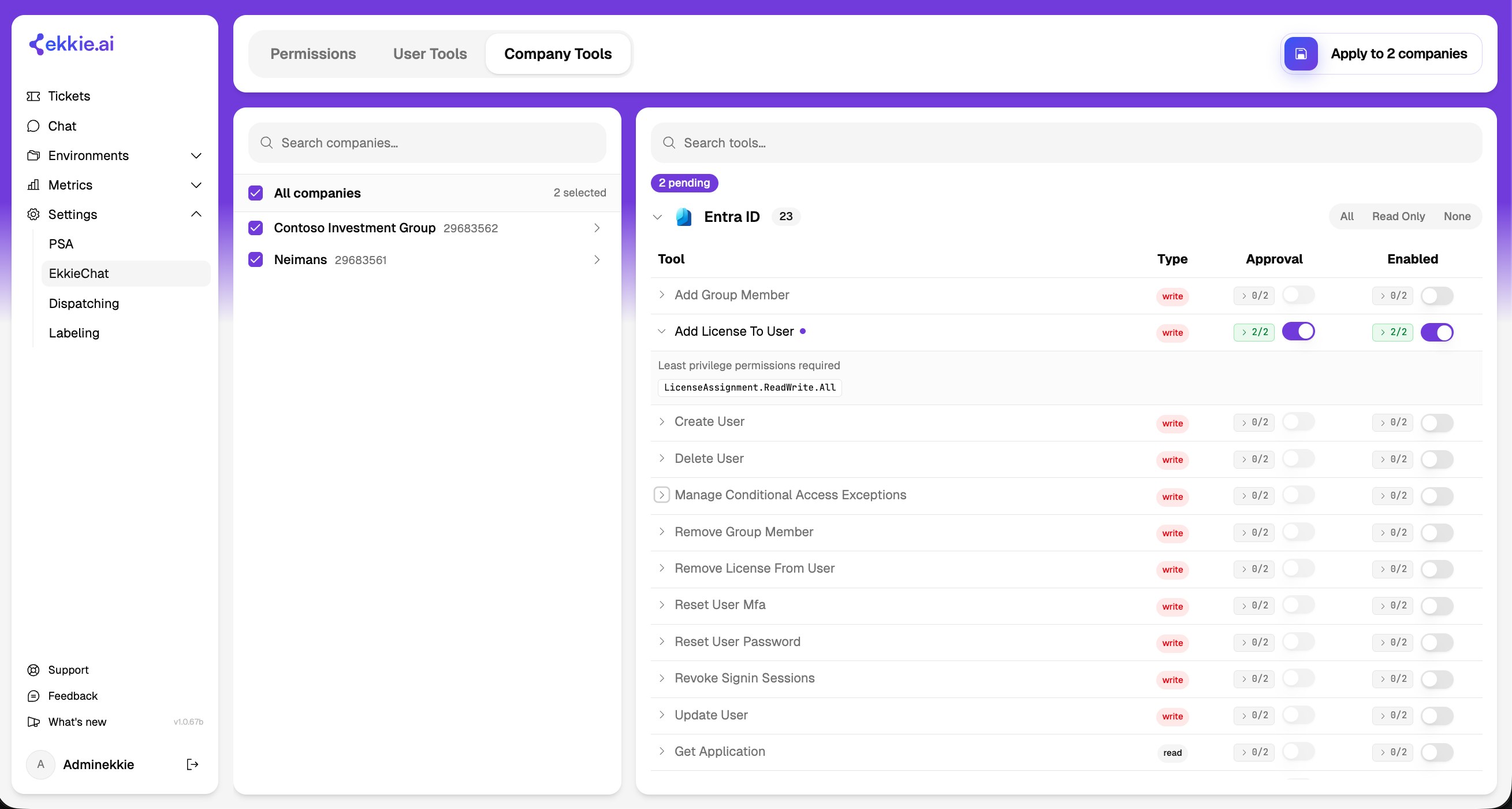
  • Company Tools — choose which tools are enabled for each company, and which require approval. Click on a Tool so see what is the minimal permissions set required for that tool to be usable by Ekkie, if not granted grant them in the ‘Permissions’ section.

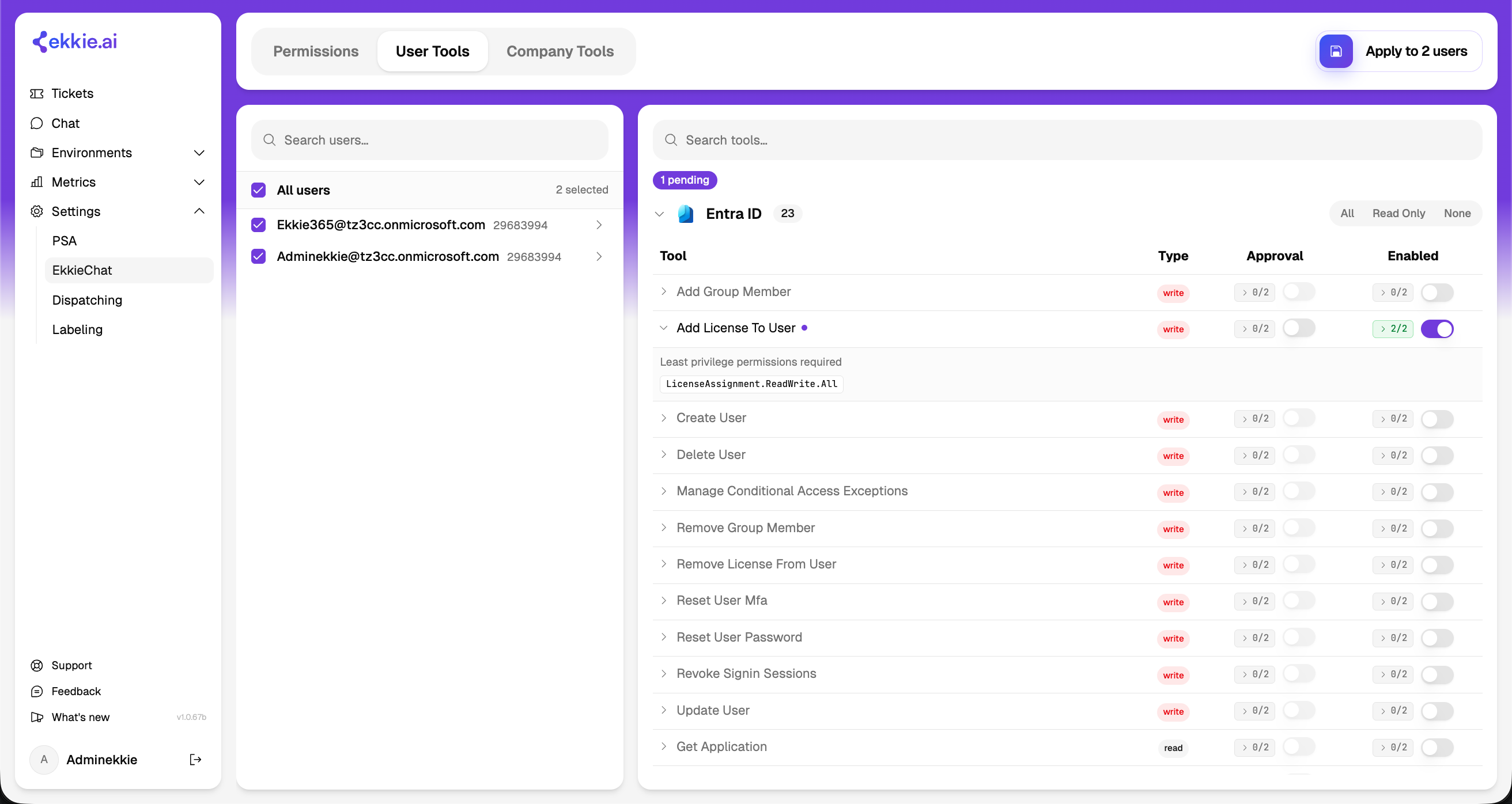
  • User Tools — choose which tools are enabled for each support engineer, and which require approval.

Applying to many companies (or users) at once

  • The left panel lists your companies (in Permissions and Company Tools) or your engineers (in User Tools). Select any combination, use All, or search to narrow the list, a running count shows how many are selected.

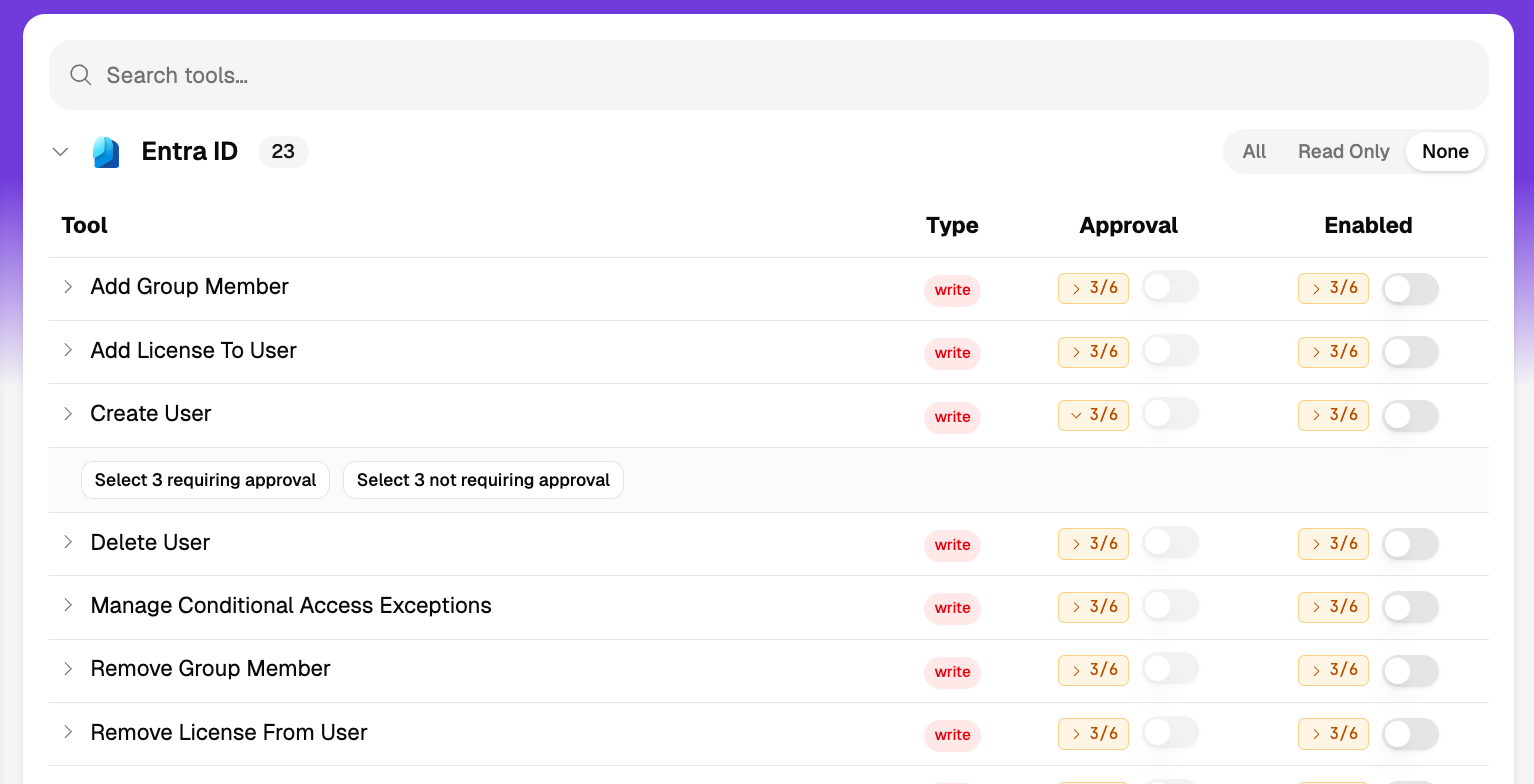
  • Every permission or tool shows a coverage count, how many of the selected items already have it. Expand it to jump-select just the ones that have it or just the ones missing it, then apply only to those.

  • Apply pushes your choices to every selected company or user. Large rollouts run in the background.

  • Applies are patches, not replacements, only what you toggled is written, so each company and engineer keeps its own distinct settings. Granting is idempotent: anything already in place is skipped, so re-running is always safe.

Enterprise Application permissions

Ekkie performs Microsoft 365 actions on each customer through its own Enterprise Application installed in that customer's Microsoft tenant, which must hold the right Microsoft permissions there. In the Permissions view you:

  • Build the set of permissions to grant — type to search and pick a suggested match, use the permission picker, or click one from the coverage table. Each queued permission shows how many selected companies already have it.

  • Load Permissions scans the selected companies and shows what each already holds. Check my permissions probes, per company, whether you have the admin rights to change that tenant — shown as a status: Allowed, No permission (you lack the admin role there), Not consented (Ekkie was never set up in that tenant), Missing permissions, or Tenant not found.

  • Apply asks for confirmation (it writes directly into each customer's Microsoft tenant), then grants across the selected tenants; companies that share one Microsoft tenant are handled once. The results group anything needing attention by cause, each with a one-line fix — correct the tenant ID, open an admin-consent link, or ask a tenant admin for access.

  • Opening a single company shows every permission Ekkie currently holds there (each tagged with the tools that use it), where you can grant or revoke individual permissions.

Good to know: this grants permissions to an app that is already admin-consented in the tenant — it cannot create that first-time setup. Where Ekkie was never consented, open the provided consent link (a tenant admin completes it) first. Changing permissions requires a directory admin role (for example Global Administrator or Application Administrator) in the customer tenant; failures are isolated per company, so fix the flagged ones and re-run.

Tool access

  • Tools are listed by product category (Entra ID, Exchange Online, Defender, Intune, Teams, Autotask, Ekkie, Web Search), each collapsible with All / Read Only / None shortcuts.

  • Each tool shows a Type badge — read (does not change the tenant) or write — an Enabled switch, an Approval switch, and its minimum required Microsoft permissions.

  • The switches are coverage-aware across your selection (all, none, or some of the selected have it), and toggling one sets the target for every selected company or user at once.

  • Turning on a tool that makes changes (a write tool) switches on its approval requirement by default. Approval can only be set on an enabled tool.

  • Microsoft documentation-search tools are always available to Ekkie and don't appear in the list. Changes take effect for new conversations shortly after you apply them.

How company and user tool settings combine

Tool access is set in two places, per company and per engineer, and the two combine for each conversation:

  • Available = both must agree. A tool can be used in a conversation only if it is enabled for both that company and that engineer. Enabling it for a person does not grant it in a company where it is off, and vice versa.

  • Approval = either can require it. A tool requires approval in a conversation if either the company or the engineer marks it as requiring approval (in addition to the always-approval tools above). Approval only ever applies to tools that are actually available.

Good to know: because availability is the overlap of the two, a tool can look enabled in one view but still not work if the other view has it off, the combined result is not shown on this page. Managing User Tools requires the Users Management role. A company or engineer that has never been configured starts with nothing enabled;

July 2nd, 2026

💬 Chat without a ticket

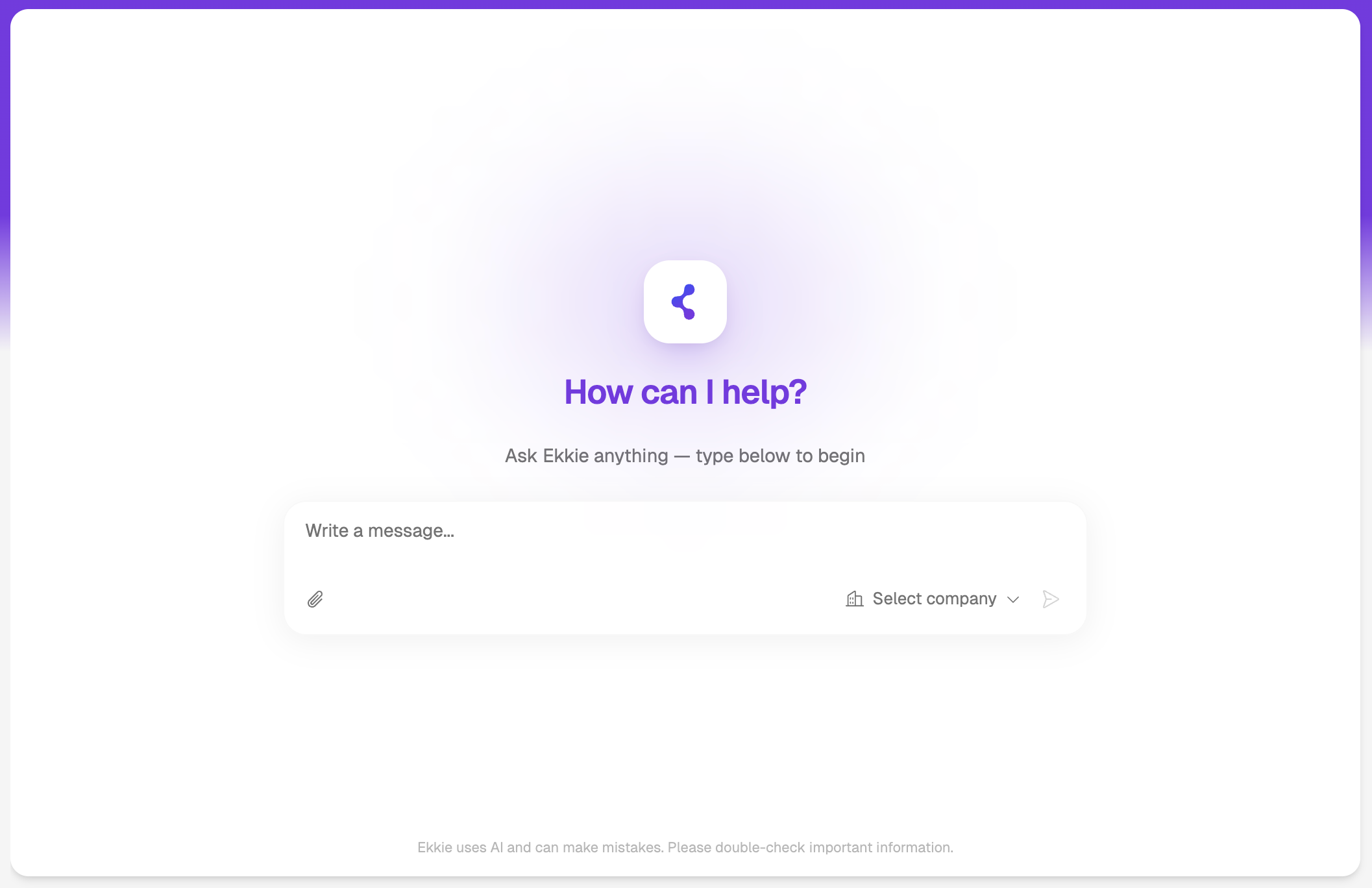
You can now chat with Ekkie without attaching a support ticket. It's perfect for asking specific questions about a company’s microsoft tenant, quetions about microsoft practices in general (Ekkie has access to the whole documentation) or questions about how Ekkie itself works and what are the features it has.


📚 Ekkie becomes self-documenting

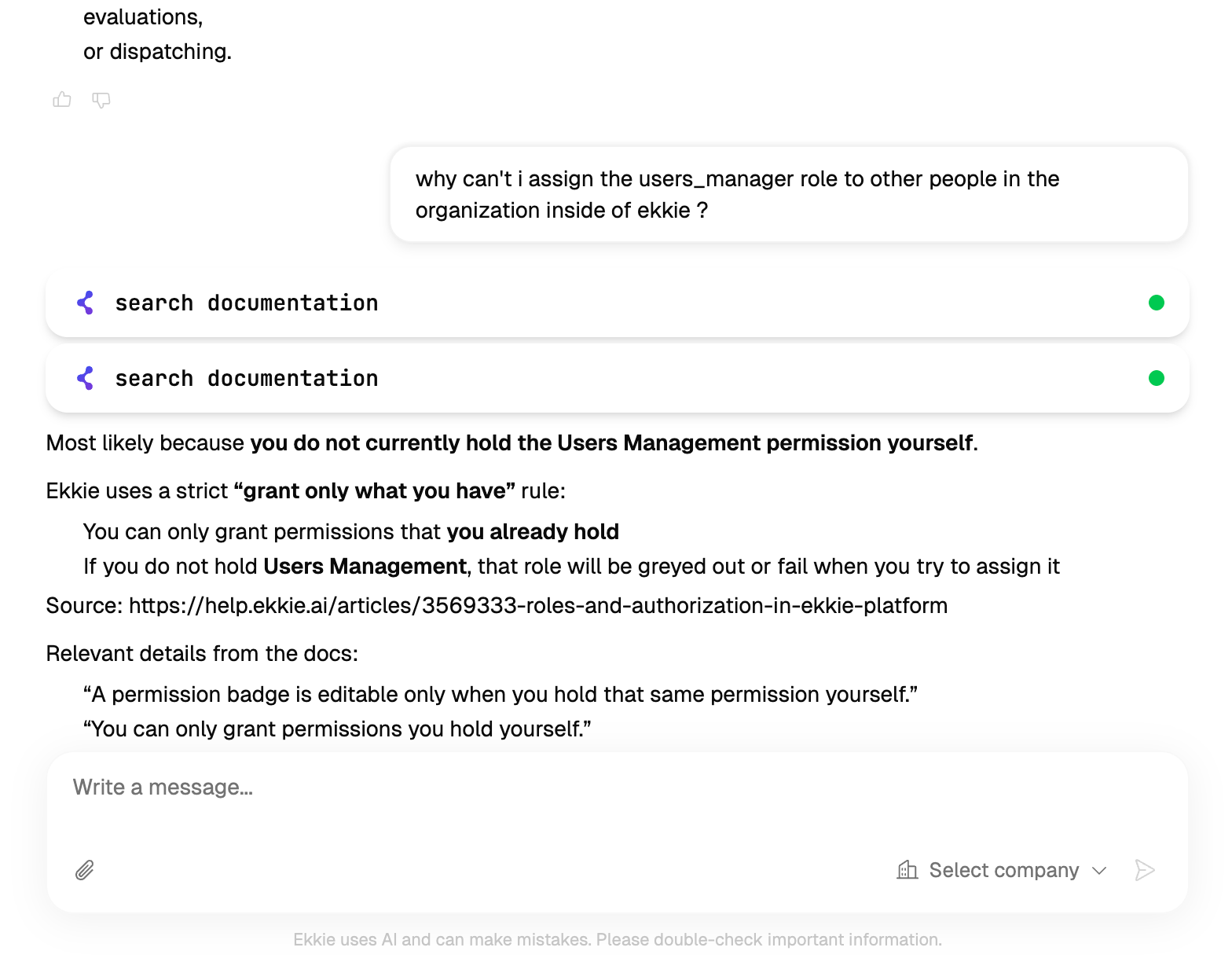
We've added a whole new library of documentation covering every corner of Ekkie and Ekkie now reads from it live. Ask it anything about Ekkie itself how a feature works, how to set something up, or the best way to handle a task and it answers from Ekkie's own up-to-date help docs, linking you straight to the relevant article. It's like having a product expert built into the chat, always ready to guide you to the best way to use Ekkie. Available now for customers on EkkieChat.


📋 Company-specific SOPs

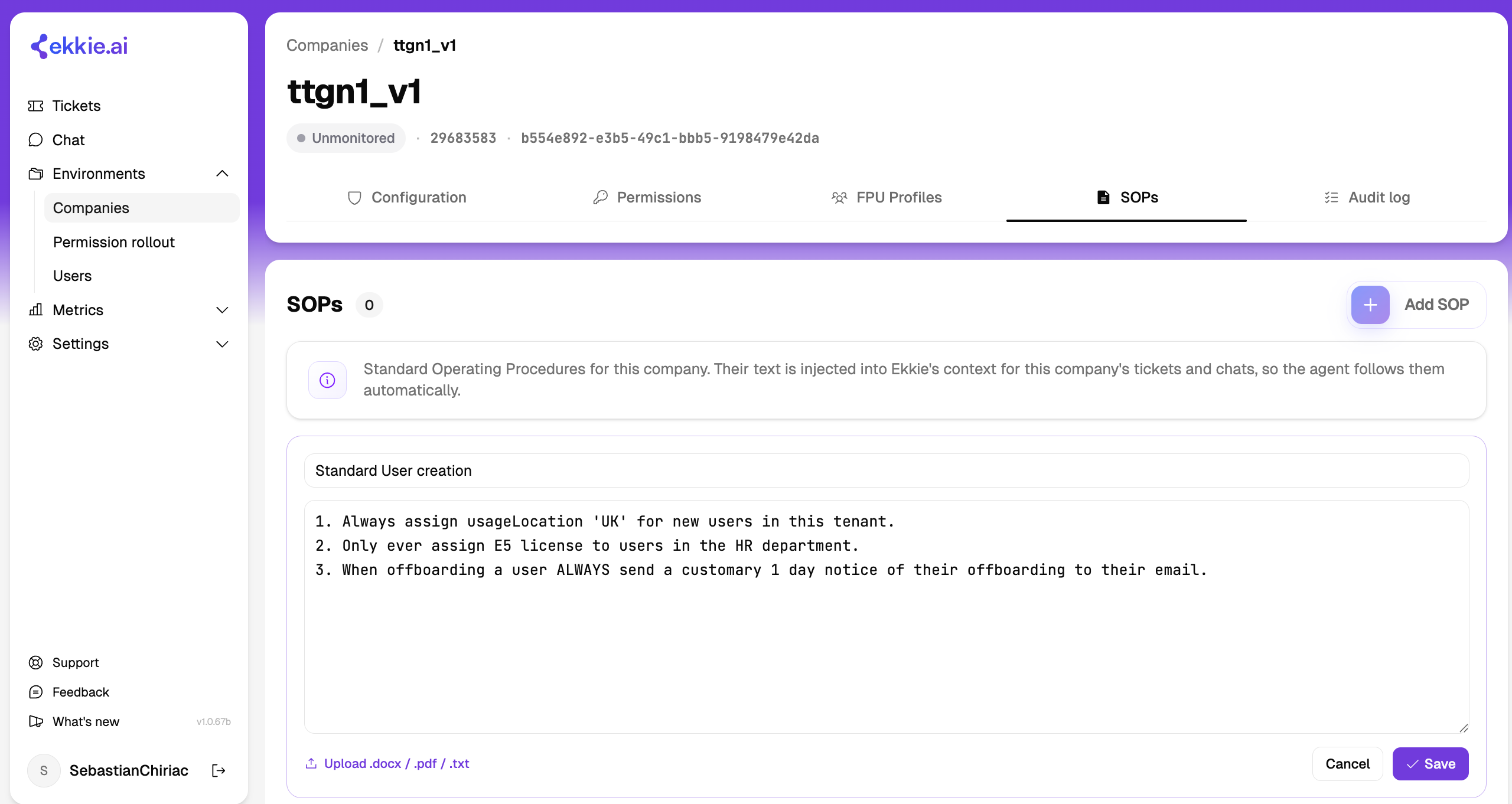
You can now attach Standard Operating Procedures to any company. Add them directly or upload your existing text files (Word, PDF, or plain text), and Ekkie automatically follows them when resolving that company’s tickets.


🌐 Web search in ticket-free conversations

Inside those ticket-free conversations, Ekkie can now search the web to help answer your questions and look things up on the fly. (For now, web search is available only in ticket-free conversations.)


⚡ Faster conversations

We upgraded the AI engine under the hood that powers Ekkie's conversations. The result: conversations are now about 22% faster, so you spend less time waiting and more time resolving tickets. No action needed, you'll just notice things feel snappier.

June 16th, 2026

We've been busy. This release brings new visibility into your managed tenants, hands-on control over Enterprise Application permissions, more observability and control of labeling, a faster Ekkie, and a brand-new way to chat with Ekkie without a ticket.


🛡️ Trust Center (new)

There's a new Trust Center where you can see the security posture and configuration drift across all of your managed tenants in one place. Spot where a tenant has drifted from your expected baseline, and keep an eye on the overall health of every tenant you manage without digging through each one individually.


🔐 Manage Enterprise Application permissions (new)

You can now manage each managed tenant's Enterprise Application permissions directly from Ekkie, no need for scripts to manage hundreds of Enterprise applications anymore!

⚠️ Action required

Before Ekkie can manage a tenant's Enterprise Application, an administrator needs to re-approve admin consent for three permissions on that tenant's App Registration. You'll need to grant the following scopes :

  • Directory.ReadWrite.All

  • Directory.AccessAsUser.All

  • Application.Read.All

Until these three permissions are granted, Ekkie cannot manage that tenant's Enterprise Application.


🏷️ Labeling improvements

Based on what customers asked for during onboarding, we've made automatic ticket labeling more flexible and easier to trust before you switch it on:

  • Label only the queues you choose. You can now restrict automatic labeling to specific queues, so only the tickets in the queues you select get labeled, everything else is left untouched.

  • Dry-Run labeling before you turn it on. A live overview of dry-run labeled tickets now appears right on the labeling page, so you can see Ekkie's predicted labels in real time and build confidence before enabling labeling for real.


As always, we'd love to hear what you think, your feedback shapes what we build next.
June 2nd, 2026

The latest from the Ekkie team — new visibility into how your team works, richer chat, and smoother day-to-day flows. Here's what shipped over the past two weeks.

New

Usage & engagement dashboard
A new metrics page for admins shows how your team is using Ekkie at a glance — active users over time, message volume, tool usage, and a team leaderboard. See adoption and spot your power users without leaving the app.

Rate any answer
Every agent message now has a feedback button. One click lets your engineers flag a great (or off) response — and that feedback helps Ekkie get sharper on your tickets over time.

Upload documents to EkkieChat
You can now send text documents straight into a chat. Drop in ticket exports, logs, or notes and Ekkie reads them right in the conversation — no copy-pasting walls of text.

One-click copy for code
Code snippets in Ekkie's responses now have a copy button. Grab a PowerShell command or script in a single click instead of selecting it by hand.

In-product help
Knowledge-base guides are now available and linked directly inside Ekkie, so answers are a click away when you need them.

Improved

A simpler way to manage access — now with five focused roles
We've moved to a five-role permission system so everyone on your team gets exactly the access they need, and nothing they don't:

  • Support Engineer — work the tickets dashboard and chat with Ekkie on tickets.
  • Labeling — manage ticket-labeling settings, run evaluations, and teach Ekkie.
  • Dispatching — control how tickets are automatically assigned to engineers.
  • EkkieChat — manage chat tools, companies, and new-user provisioning.
  • User Management — add teammates and control who can access what.

Roles mix and match, so one person can hold any combination. The big win is onboarding: instead of an all-or-nothing admin switch, you grant each new hire just the products they'll actually use — and your own admins can bring engineers online themselves, so people are productive on day one without over-provisioning access.

More control over time entries
You can now choose whether a time entry appears on the invoice, with improved handling for recurring contracts.


That's it for this round — more every two weeks. Have a request or feedback? Use the feedback button in-app, we read everything.

May 13th, 2026

New

Improved

Fixed

Chat & Tickets

  • All tickets view in chat. See every ticket in your tenant, not just the ones assigned to you.

  • Sidebar status filters. Filter the ticket sidebar by Active, Inactive, or Closed.

  • Faster navigation between chat and ticket pages.

  • Custom time ranges for the tickets dashboard page.

Labeling & Dispatching

  • Labeling evaluation page. Review how the model is labeling your tickets before going live.

  • Dry run mode for labeling and dispatching, switchable per tenant.

  • In-portal evaluation for labeling, evaluate and customize your Ekkie Labeling Agent.

  • Redesigned labeling settings UI with a fresh new look.


May 3, 2026

Search & Navigation

  • New ticket search in the navbar with company filtering.

  • Time filter added to the Tickets Metric Island.

  • New default duration for tickets on the home page.

Labeling & Dispatching

  • Separate API users credentials for labeling versus dispatching for having more fine-grained killswitches.

  • Picklist values now carry their descriptions.

Autotask Integration

  • Failed Autotask requests better surface to the frontend.

  • Support for companies without a Microsoft tenant ID.

  • Better handling of AADSTS65001 errors when a company lacks Enterprise App permissions.

User & Tenant Management

  • New Users page to view every user in your tenant.

Tables & UI

  • Tables now use infinite scroll instead of pagination.

  • Toast error messages are only dismissible via the X, preventing accidental dismissal.

  • Company modifications now trigger a global cache refresh.

May 13th, 2026

New

Improved

Fixed


A big release for Labeling & Dispatching, plus PSA settings, chat polish, and smarter alerts.

In this release

  • New Labeling Settings page with full evaluation workflow

  • Drag-and-drop ticket statuses and per-tenant priority labels

  • Smarter chat sessions


Labeling & Dispatching

The biggest area this release. Full configuration and evaluation control over how Ekkie handles your tickets.

Labeling Settings page

Review and edit how Ekkie labels incoming tickets per tenant, including label types, priorities, and queue assignments, all in one place.

Evaluation runs

See how Ekkie would have labeled your historical tickets before you commit to any change.

  • Pick a custom date range and sample size

  • Scope evaluations to specific labels or sets of labels

  • Cycle through mislabeled tickets one by one to spot patterns

  • Export eval reports and field overrides as JSON

  • Run evaluations label by label as a guided onboarding flow

Webhook improvements

  • Faster handling. PSA webhooks are acknowledged immediately, and time entries are only written when something actually changed. Less noise on your PSA.


PSA Settings & Ticket Management

More control over how your PSA data is organized and displayed in Ekkie.

  • Drag-and-drop ticket statuses. Reorder statuses on the PSA settings page. The new order shows up everywhere in Ekkie.

  • Configurable priority labels. Set the order and colors for Low, Medium, High, and Critical priorities per tenant.

  • Smooth pagination. Tickets, Companies, FPU, and Users pages handle large datasets cleanly.


Chat & Agent

A more reliable, focused workspace for your engineers.

  • Service unavailable page. When something upstream is unavailable, the chat UI shows a clear status page so you always know where you stand.

  • Ticket status selector in the chat header. Change a ticket's status directly from the chat without leaving the conversation.

  • Smarter auto-plans. Automatic ticket-plan generation runs on your own active tickets, keeping plans relevant to your queue.


Company Alerts

Right alert, right place. Company alerts now surface where you configured them to display inside of Autotask, whether that's the ticket sidebar, the dashboard, or elsewhere, with accurate matching on every ticket.


What's next

  • LADI onboarding flow with AI Label Context

  • More PSA settings, including notification rules and custom field mappings

  • Continued quality work on ticket-plan accuracy


As always, reach out with feedback or requests.

The Ekkie team

September 4th, 2025

New

Added

  • AI labeling (backend-only)
    AI assigns Issue Type, Sub-Issue Type, Priority, Impact, and all other ticket UDFs.

  • Event triggers
    Runs on ticket creation notification from the Autotask webhook.

  • Change logging
    For every ticket labeled by Ekkie, an internal ticket note is appended summarizing all field changes.

Behavior

  • Uses confidence thresholds; on low confidence, it abstains (no changes made).

Internal Note Format (example)

[Ekkie Labeling]
Applied 
Issue Type: Office365 
Sub-Issue Type: Teams 
Priority: 3
Impact: Single User

Compatibility

  • No schema changes required; operates via backend events/APIs only (no UI in this release).

  • Only for Autotask PSA

Known Limitations

  • Downstream automations may overwrite fields if ordering isn’t configured.